Print Settings
Print Settings decides how printed documents look — bills, pharmacy bills and lab reports — and it is set per authority, so each site can print on its own letterhead, with its own margins and its own options. Open it from Worklist → Print Settings.
At a glance
fa-cog | Open Print Settings | Worklist → Print Settings.
fa-hospital-o | Choose the authority | One site, or apply to all the sites you can access.
fa-file-text-o | Choose the document type | Bill, Pharmacy Bill or Lab Report.
fa-sliders | Set layout and options | Margins, header and footer, and the document's options.
fa-eye | Check the live preview | A real sample document with your unsaved changes.
fa-save | Save Print Settings | The change is saved and recorded in the audit history.
The screen
The screen has two panes side by side — Configuration on the left and Preview on the right, with the Audit History below the preview. Drag the divider between them (or move it with the arrow keys) to give either pane more room.
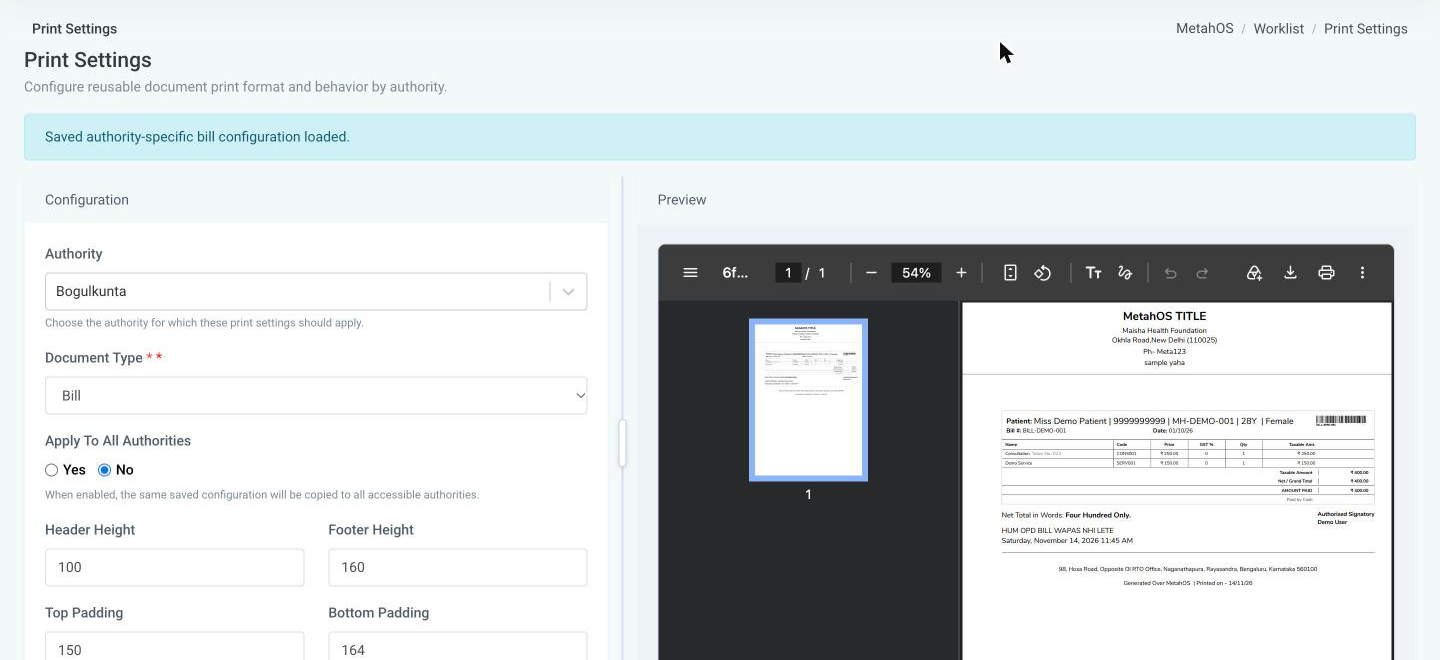
Choosing what to configure
- Authority — the site whose settings you are editing. Only authorities you can access are listed.
- Document Type — Bill, Pharmacy Bill or Lab Report. Only the types you have permission for are listed.
- Apply To All Authorities — shown when you can access more than one authority. Choose Yes to copy the same settings to every authority you can access when you save. The Authority field is locked while this is on.
When the settings load, a message tells you where they came from: the authority's own saved settings, the shared hospital-wide settings, or — if the authority has never been configured — the existing settings as a starting point.
Page layout
| Field | What it controls |
|---|---|
| Header Height / Footer Height | Space reserved at the top and bottom of each page. |
| Top / Bottom / Left / Right Padding | The margins around the printed content. |
Preview mode
The Preview Mode sets how the header and footer are printed:
| Mode | What prints | Fields shown |
|---|---|---|
| Standard Header/Footer (default) | A header and footer built from text and logos. | Header Title, Header Subtitle, Left Logo, Right Logo, Address (taken from the site, read-only), Contact, Additional Header Content (printed below the contact number), and Footer Content. |
| With Custom Letterhead | Your own header and footer images. | Header Image and Footer Image. |
| Plain Paper | Nothing in the header — a blank band of the header height is left for pre-printed stationery — and only the page number in the footer. | None. |
Bill and Pharmacy Bill options
All of these are Yes / No and default to No:
| Option | Effect on the printed bill |
|---|---|
| OPD Bill Footer Remark | A line of text printed above the date (Standard mode only). |
| Minimize Bill Print | Smaller text and a more compact layout. |
| No Alternate Color In Bill | Turns off alternating row shading. |
| Hide Prices From Payment Info | Lists the payment modes without their amounts. |
| Show Cleared Items In Bill | Keeps cleared items on the bill. |
| Show Item Codes In Bill | Adds a Code column. |
| Show Memo Type In Bill | Prints Cash Memo or Credit Memo. |
| Show Payment Strings In Bill | Prints card and cheque reference details. |
| Show Boarding Pass In Bill PDF | Adds a pass with the doctor's name, floor, room and contact. |
| Show Copy Bill | Marks reprints as COPY BILL, with when and by whom it was printed. |
| Hide Bill Footer | Leaves out the footer, unless a custom footer image is set. |
| Has No Consultation Queue | Leaves out the token number and scheduled time. |
The Lab Report options are described in Lab Report Print Settings.
Live preview
The preview is a real PDF of the selected document, filled with sample data (Demo Patient) and showing your changes before you save them.
Saving
Click Save Print Settings. The confirmation tells you whether the settings were saved for the selected authority or for several authorities.
Audit history
Every save is recorded. The Audit History below the preview lists the changes for the selected authority and document type, and can be searched.
| Column | What it shows |
|---|---|
| Authority, Document Type | What was changed. |
| Changed By, Changed On | Who saved it, and when. |
| Changes | Each setting that changed, as Label: old → new. Images show as Previous image → New image. The first save shows Initial settings saved, and a save that changed nothing says so. |
| Scope | Selected Authority, or All Selected Authorities (N) when Apply To All was used. |
Entries made before this release show Not recorded for this older entry under Changes.
How bills use these settings
- A bill prints with the settings of the authority the bill belongs to. Pharmacy bills use the Pharmacy Bill settings.
- The header and footer come only from the saved settings. A blank Header Title, Subtitle, Contact or Footer Content prints blank — it no longer falls back to the hospital's name.
- The Print Bill window no longer applies the old hospital-wide letterhead and padding options. Everything is controlled here.
After the upgrade
The upgrade copies your existing hospital-wide print settings into Print Settings for each authority, so bills look the same as before. Review each authority afterwards if your sites need different letterheads.
Who can use Print Settings
Print Settings has its own permissions, under Worklist → Print Settings in the Role editor:
| Permission | What it allows |
|---|---|
| View | See Print Settings in the sidebar and open the screen. |
| Edit | Save changes. Without it the screen is view-only: the fields are disabled and there is no Save button. |
| Bill | Work with the Bill document type. |
| Pharmacy Bill | Work with the Pharmacy Bill document type. |
| Lab Report | Work with the Lab Report document type. |
A user needs the view permission and at least one document-type permission to use the screen.
Upgrading from v1.0.77
Print Settings used to be available to anyone with access to Settings. That no longer applies, and the new permissions are not added to existing roles. Until an administrator grants them, only users with all permissions can open Print Settings.