Payments Report
The payments report lists every payment collected in a date range, with who collected it, how it was paid and what happened to the bill afterwards. It appears in three places:
- Bill Management → Payments
- Pharmacy → Pharmacy Transactions — pharmacy bills only
- Inside Cash Counter shift management
At a glance
fa-calendar | Pick a date range | The end date can't be in the future.
fa-search | Find a bill | Search by bill number, or filter OPD / IPD / pharmacy.
fa-list | Read the list | 20 payments per page, with cancellation and refund details.
fa-print | Print a bill | Reprint any bill straight from its row.
fa-download | Export | CSV or PDF of every matching payment.
Choosing the dates
The End date cannot be later than today, and the Start date cannot be after the End date — the date pickers won't offer those days.
Finding a payment
- Bill Number — type a bill number to find its payments. It is an exact match, so type the whole number. The search runs once you stop typing and returns you to the first page.
- Bill Type — All, OPD or IPD. OPD is non-pharmacy bills without an admission; IPD is non-pharmacy bills with one. (Not shown on Pharmacy Transactions, which only lists pharmacy bills.)
- Show Pharmacy / Exclude Pharmacy — with Bill Type set to All, Show Pharmacy lists pharmacy bills only. With OPD or IPD selected, it lists that type plus pharmacy bills, so you can see, say, all outpatient and pharmacy takings together. While one of these is active its button reads Show All; click it to go back. Changing the Bill Type resets them.
The list
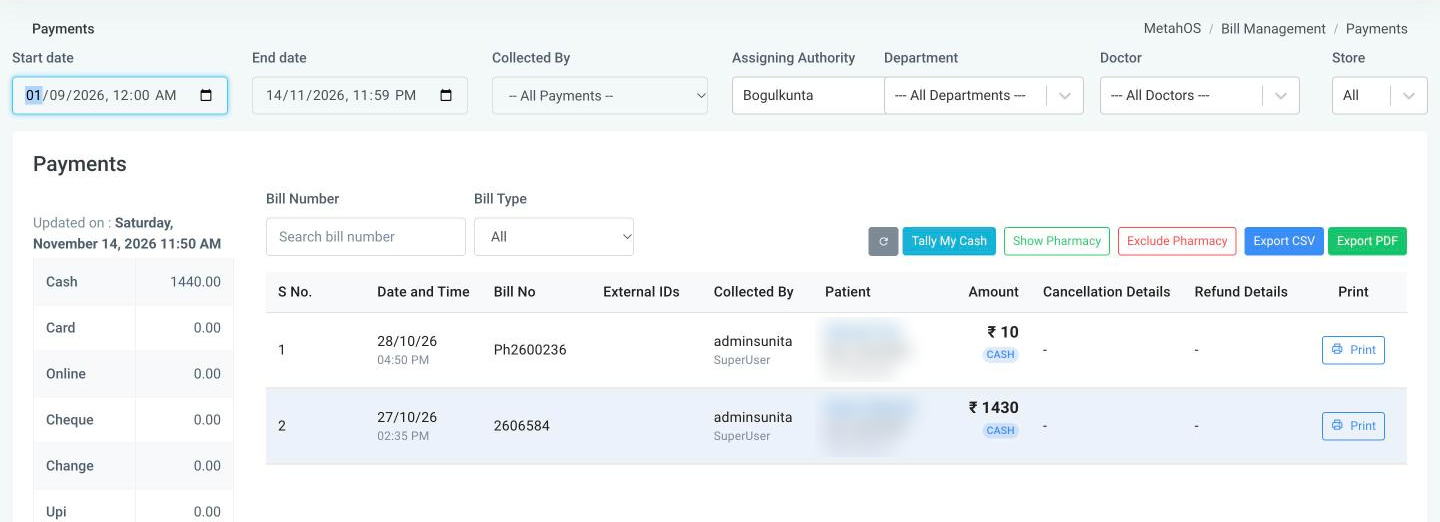
The report shows 20 payments per page. Alongside the payment details, each row has:
| Column | Shows |
|---|---|
| Cancellation Details | A Cancelled badge, who cancelled the bill and when. |
| Refund Details | A Refunded badge, who refunded it and when. |
| A Print button to reprint the bill (needs the permission to print bills). |
Exporting
- Export CSV includes Cancelled By, Cancelled On, Refunded By and Refunded On, alongside the date, time, bill number, collector, patient and amount-by-payment-mode columns.
- Export PDF prints every matching payment, not just the page you are looking at, and includes the cancellation and refund details.
The export buttons need the data-export permission.
note
On large sites the report could previously time out before loading. It now loads normally, and the All Bills list is faster too.