Clinical Infra Management
Clinical Infra Management is where a site's inpatient layout is set up: nurse stations, wards, rooms and beds, along with bed accessories, bed statuses and bed pricing groups. Open it from Facility → Clinical Infra Management.
The buildings, floors and rooms it builds on come from Site Management, so set those up first.
At a glance
fa-building | Set up the site | Buildings, floors and rooms in Site Management.
fa-user-md | Add nurse stations | Each one sits on a building and floor.
fa-th-large | Add wards | Each ward belongs to a nurse station.
fa-bed | Add beds | Each bed sits in a room, with optional accessories.
fa-tags | Statuses and pricing | Bed statuses, accessory rates and pricing groups.
Filtering the screen
The bar at the top narrows every tab to one authority (site), and optionally one Building and Floor. Pick these first so new records land in the right place.
The tabs
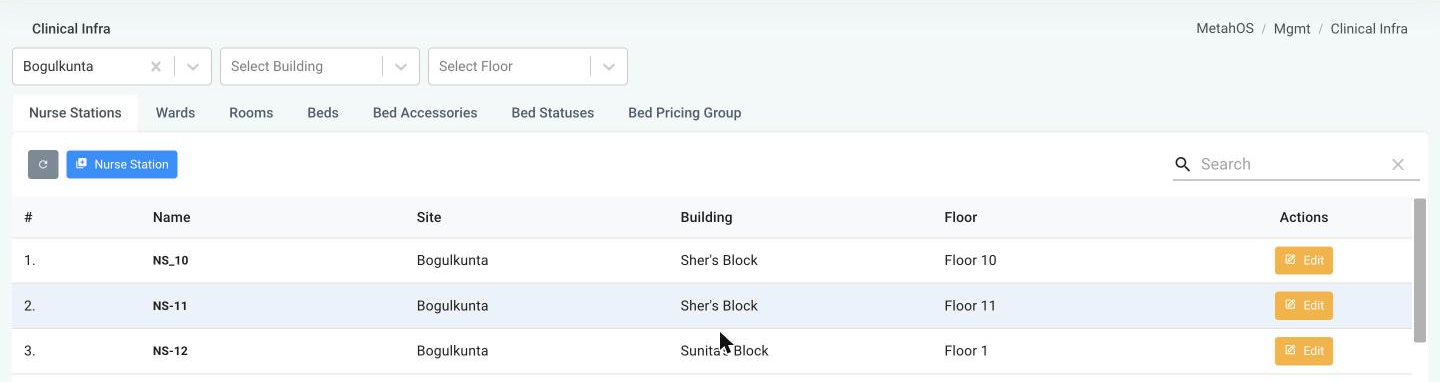
| Tab | What it holds | Main fields |
|---|---|---|
| Nurse Stations | The nursing posts that look after wards. | Name, Code, Notes, Site, Building, Floor |
| Wards | Groups of rooms run from one nurse station. | Name, Code, Notes, Nurse Station |
| Rooms | The site's rooms (shared with Site Management). | As in Site Management |
| Beds | Individual beds. | Bed Name, Number, Code, Room, Accessories |
| Bed Accessories | Chargeable extras attached to a bed, such as a monitor. | Name, Rate, Unit (/hr, /day, /week or /use) |
| Bed Statuses | The states a bed can be in, each with a colour. | Name, Color |
| Bed Pricing Group | Pricing groups and the authorities they apply to. | Name, Assigning authorities |
Each tab has a button to add a record and an Edit button on every row.
Adding a nurse station
Click Nurse Station on the Nurse Stations tab:
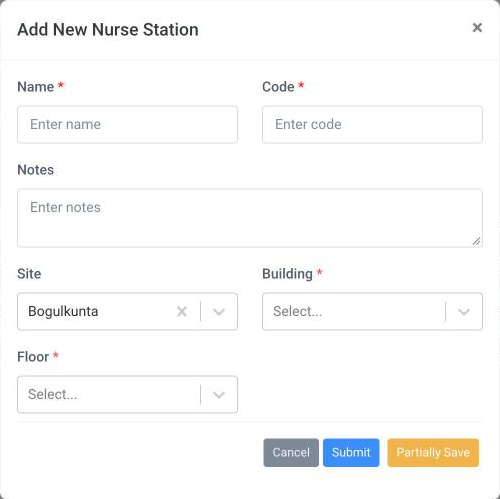
Name, Code, Building and Floor are required. The Floor list only shows floors of the chosen building. If Building or Floor is left empty, the form shows Please select Building or Please select Floor and does not save.
Submit saves and closes the form. Partially Save saves the record and moves you on to the next tab, which is handy when building a new layout from top to bottom.
Adding beds
On the Beds tab, filter by Room to see one room's beds, or leave it empty to see them all:
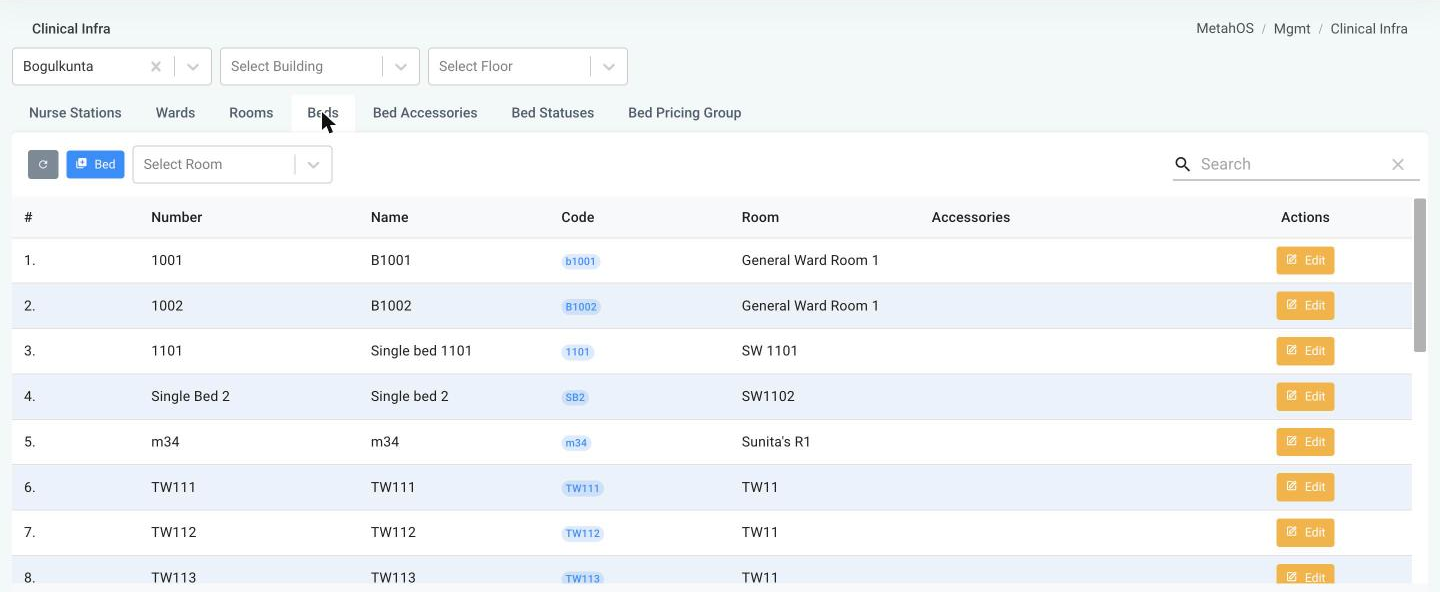
Give each bed a name, number and code, choose its Room, and attach any Accessories set up on the Bed Accessories tab.